Identity providers
Identity providers determine how the end user authenticates during the AIGW authorization flow.
Account-level enablement
IdP Management lists six built-in providers and a summary of how many are on for the Account. Toggle a provider to enable it; providers enabled at the Account level become selectable on individual Resources.
| Provider | Type shown in Console |
|---|---|
| Apple | OIDC · Sign in with Apple |
| OIDC · Facebook Login | |
| OIDC · consumer + Workspace | |
| LoginID | Passkeys · passwordless |
| Microsoft | OIDC · consumer + work accounts |
| Prove | Identity verification |
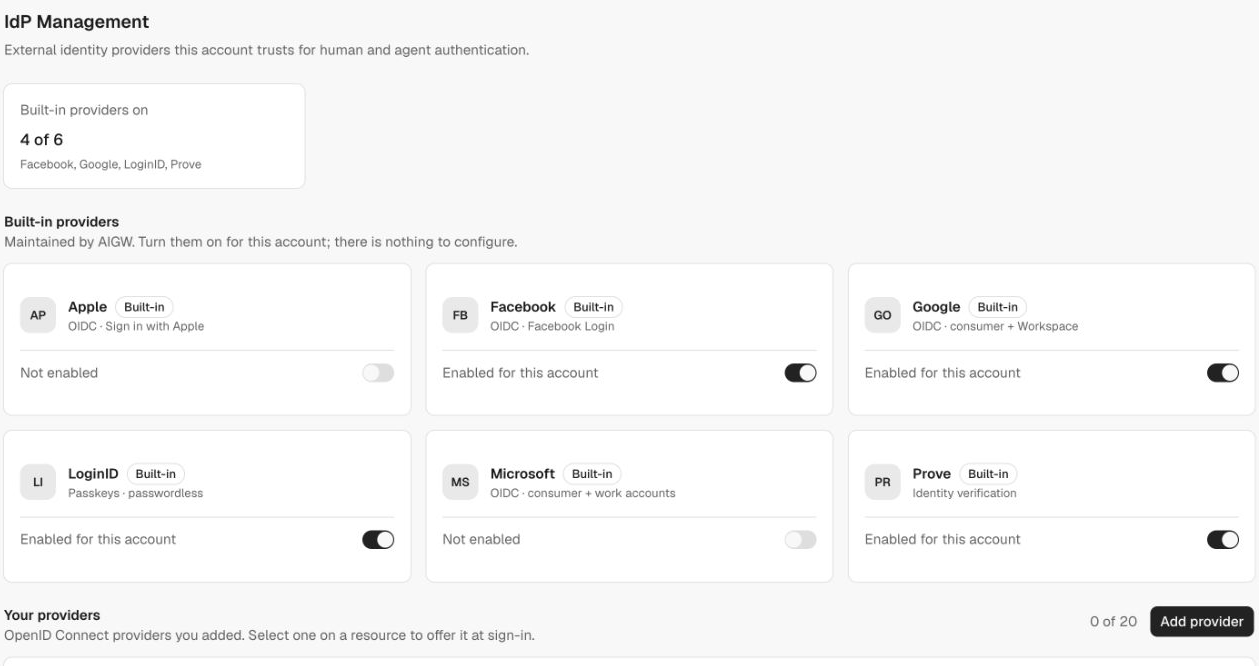
Enable the providers available to your Account, then select them on each Resource. If a provider is unavailable, contact LoginID support.
Resource selection
When registering/editing a Resource, choose which enabled providers users may use (only providers enabled for the Account are shown; the selection is optional). The selection affects the browser login experience for that Resource.
Configure the hosted sign-in/consent screen on the Resource. To use your own OIDC provider, connect it to the Account first, then enable it on the Resource.
Account-owned OIDC provider
- Open IdP Management → Your providers → Add provider.
- Enter a Display name and an HTTPS Issuer or discovery URL from your OIDC provider.
- Enter the Client ID and Client secret from the application registered at that provider.
- Choose the scopes to request at sign-in.
openidis required;profileandemailare selected by default. To request another scope, enter its value in the scope input and click Add. - Click Save, then copy the generated Redirect URI to the upstream application's allowed redirects.
- Use Test connection on the provider detail page. Turn on Enabled and save, then select the provider on your Resource and complete a sign-in.
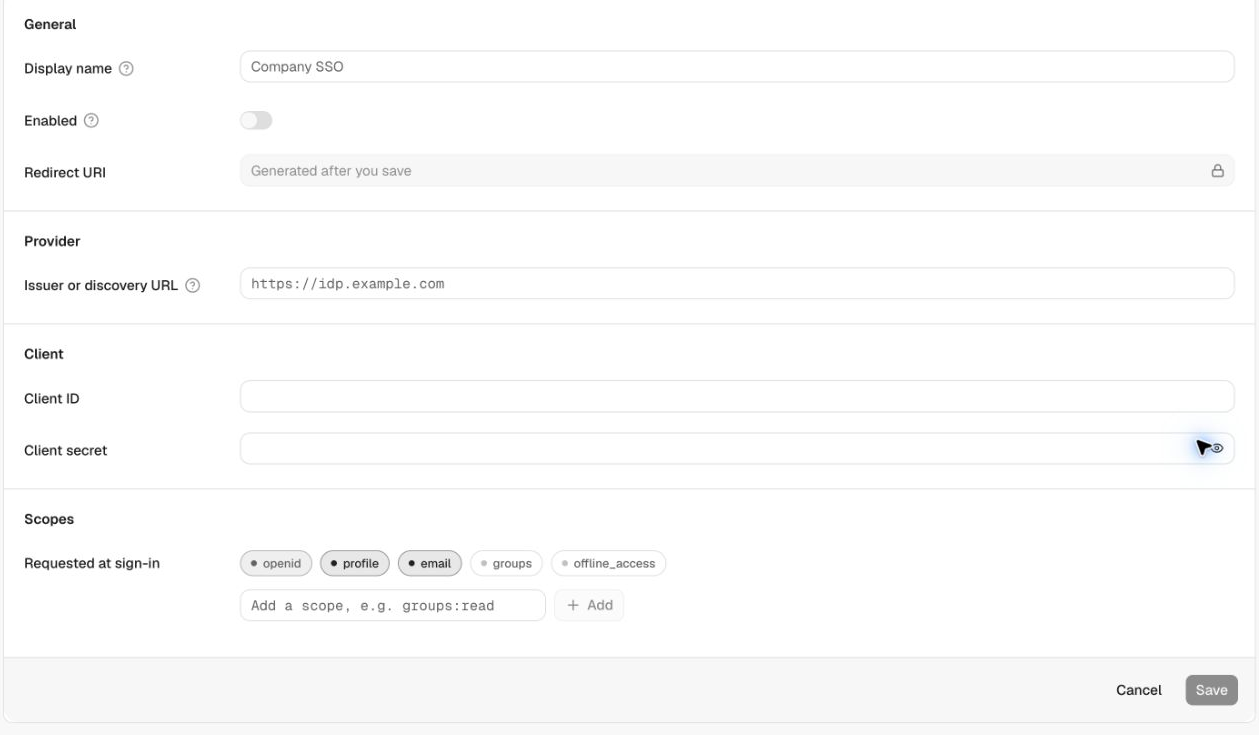
Secrets stay server-side. Use the provider detail page to rotate the client secret when needed.
This is a sign-in provider configuration, distinct from the downstream authorization server that issues the merchant API token. Configuring one does not provision the other.
Sign-in and consent customization
Open the Resource's Sign-in & consent tab to configure the hosted screens. When LoginID is one of the Resource's identity providers, the same settings also shape its passkey sign-in page.
The tab includes:
| Group | Settings |
|---|---|
| Appearance | Logo URL, color scheme (e.g. light), border radius, accent color, primary action color, secondary action color |
| Behavior | Allow one-time code fallback (sign in with an emailed code if a passkey isn't available), Show scope descriptions on the consent screen, Show verified agent on the consent screen |
| Trust ID | Enable Trust ID for returning-account sign-in with a browser-held key. Share accounts across merchants allows accounts to be used across participating merchants and requires Trust ID |
| Screen text | Sign-in screen: heading, subheading, action button label, footer text. Consent screen: heading, approve button label, deny button label, footer text |
The Live preview panel switches between Sign-in screen and Consent screen. Click Save changes to apply.
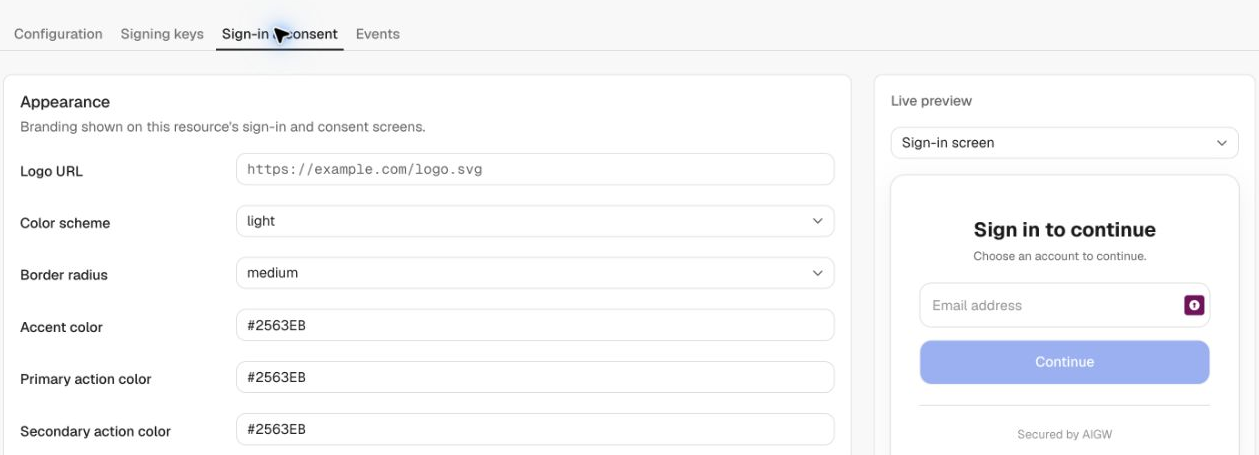
Trust ID and shared accounts
Enable Trust ID lets AIGW recognize a returning account using a key held by the browser, reducing repeated sign-in prompts. Trust ID must also be enabled for your AIGW service.
Share accounts across merchants lets people sign in with an account from another participating merchant and use an account from this merchant at other participating merchants. Enable it only when this shared-account experience is appropriate for your application. It requires Enable Trust ID.
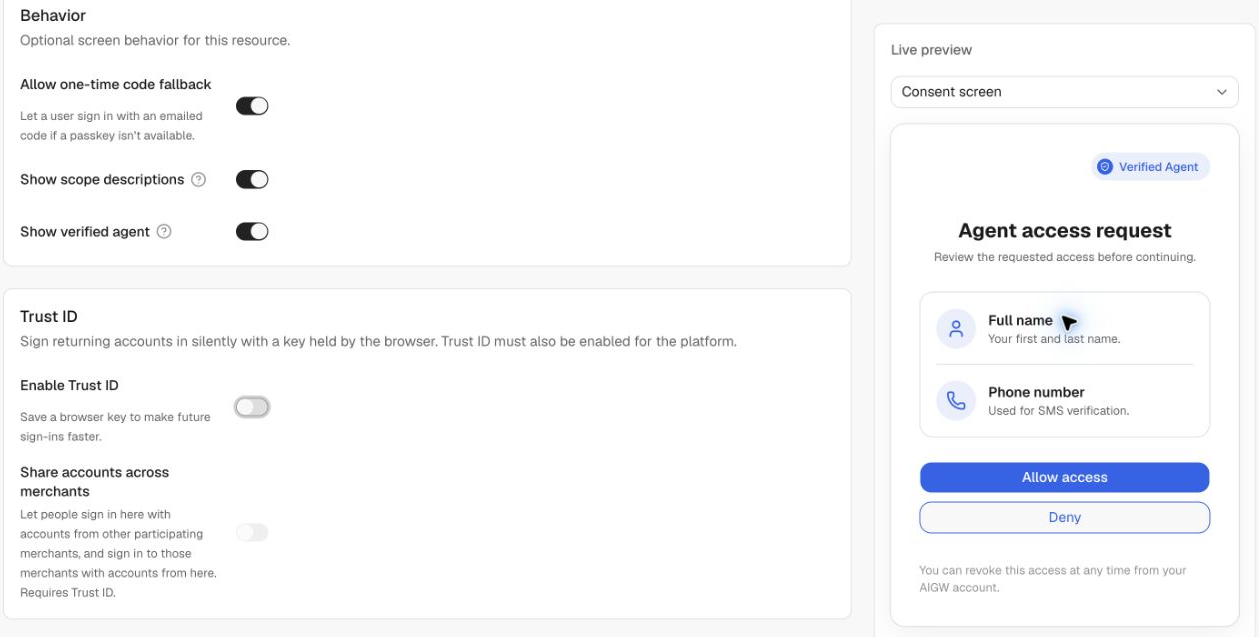
The consent preview uses sample identity permissions. Complete a sign-in and consent flow to verify the providers and scopes configured on your Resource.
End-user authentication
The sign-in flow depends on the identity providers enabled for the Resource and the user’s existing account. New users may verify a phone number or email address, complete identity verification, and register a passkey. Returning users may have fewer steps. A successful passkey or email sign-in proves control of that authenticator; it does not by itself establish a person’s full identity.
Allow one-time code fallback offers email-code sign-in when that method is available for your Account. Complete a sign-in with each enabled method before making the Resource available to users.